
How the Kit works
Four ideas explain most of what the Kit does.
- It's the game. The map you edit runs under the Kit's window. Most edits go straight into the running game, so you see them as you make them. What shows when lists the few that wait for the map to load again.
- It works on maps, not tags. The Halo 3 Editing Kit builds a map from loose tag files. The Kit opens a built map and records your changes. You don't need any tags, and you can bring tags in when you have them.
- Originals are never written. Your edits go into a scenario file of your own or into a new map. Nothing changes the installed maps.
- Everything can be undone. Ctrl+Z takes back any edit, in any workspace. A dragged value is one step, and an edit made to the whole selection is one step.
Shortcuts on this page say Ctrl. On a Mac, Cmd works as well, and Alt is Option. Labels are written as the Kit shows them, including its spellings.
Opening and closing
The Kit is an app of its own, on the download page, and needs only MCC. With the game installed, RECLAIMER KIT in its main menu opens the same editor.
| Platform | Program | Notes |
|---|---|---|
| Windows | reclaimer-kit-version.exe | Keep reclaimer-kit in the file name: under another name, the program is the game. |
| macOS | Reclaimer Kit.app | In its own zip. macOS blocks its first start as it does the game's. |
| Linux | project-reclaimer-kit | With project-reclaimer-kit.desktop, in its own tarball. |
The Kit updates itself, from its own package: a newer release shows as a button at the top bar's right, and Update & Restart downloads it while you work and puts it in place as the Kit restarts, once your changes are saved. It shares the game's player folder and caches, and a Kit opened while the game runs is a second program.
From the command line
| Command | Opens |
|---|---|
project-reclaimer --kit | The Kit with no map, on the start screen |
project-reclaimer --kit --map NAME | A multiplayer map, installed or a mod's, by file name or title |
project-reclaimer --kit --campaign 3010 | A campaign mission by ID: 3010 is Sierra 117 |
project-reclaimer --verify-map FILE | No window: checks a map and prints the report. See Verify Map |
The Kit's own program takes the same arguments without --kit, so project-reclaimer-kit --map guardian does the same as project-reclaimer --kit --map guardian.
Closing
File → Close Kit goes back to the menus if you came from them, and ends the program if the Kit's program or the command line started it. The Kit opens in a normal window, whatever display mode the game uses, and gives the game its own mode back as it closes.
Start screen
With no map open, the game plays nothing, every area says No map open, and menu items that need a map are off. The start screen sits in the middle. File → Start Screen brings it back any time.
- On the left, Open Map lists the installed multiplayer maps, the missions and your mods' maps by kind, with a Search box above them. Under the list are Open Map from File…, Open Scenario… and Open Scenario from File….
- On the right, Recent lists the maps and scenarios you opened or saved lately, newest first. A scenario shows with its map's title, such as armory_mvp · Rat's Nest (scenario). One whose file has gone is dimmed.
Esc or a click outside closes the start screen. If you close it with no map open, the Kit closes too.
Opening other things
| Item | Does |
|---|---|
| Open Map… Ctrl+O | A window listing maps under Multiplayer, Campaign and Mods, with a filter. The Kit stays up while the game loads the next map, and asks first if you have unsaved changes. |
| Open Map from File… | Any .map file. One the Kit already lists opens as usual. Another Halo 3 multiplayer map is copied into your Mods folder as a package of its own, so the game can play it. A mission only opens from the installed maps or a campaign package. Files that aren't Halo 3 maps are refused. |
| Open Scenario… | Your scenarios, newest first, and with the tags folder set, the Editing Kit's own levels scenarios under them, searchable. |
| Open Scenario from File… | A .rkscenario anywhere on your computer, or an Editing Kit .scenario. |
File browser
The Kit has its own file browser rather than the system's, the same on every platform.
- The path bar at the top takes a typed path: Enter goes to a folder or opens a file. Back and the up arrow move between folders.
- Search below searches everything under the current folder when you press Enter.
- Places on the left: Home, Desktop, Installed maps, Mods, Kit Projects, Editing Kit tags, and the folders you chose from lately.
- Show every file turns off the filter by file type.
- Double-click to open a folder or file. Enter opens what's chosen, and Esc cancels. In Import Tags, Shift or Ctrl chooses several files.
The window
A normal application window titled Project Reclaimer - Editing Kit. Your system moves, resizes, minimizes and closes it.
- The top bar holds the menus File, Edit, View, Add and Object, the workspaces Level, Tags, Assets and Scripts, then at the right the map's title, with a dot while it has unsaved changes, and ▶ to play.
- The status bar says what the mouse does right now, and shows each report: what was saved, what failed and why. Hover over a long report to read all of it. At its right end, Selected N of M counts the selection, and Objects N of M counts the objects in the game against the room the engine has for them.
Keyboard and mouse
The viewport's keys follow Blender's Object Mode. While a text field has the cursor, keys go to the field, except F5, which always plays. Delete and Backspace (a Mac's delete key) only act with the pointer over the view, so a key meant for a field can't delete your selection.
Moving the view
| Input | Does |
|---|---|
| Right mouse held | Fly: the mouse looks, W A S D and Q / E move, Shift goes faster, the wheel or a swipe sets the speed. Let go and the view stays |
| Middle mouse drag, Alt + left drag | Orbit. With Shift: pan. With Ctrl: zoom |
| Wheel | Zoom. Sideways: orbit |
| Trackpad, two-finger swipe | Orbit. With Shift: pan. With Ctrl or Cmd: zoom |
| Trackpad, pinch | Zoom |
| Navigation gizmo | Drag it to orbit, click an axis for that view. The buttons below it zoom and pan by dragging |
| Shift+` | Fly navigation: the same keys, with no button held. Left mouse keeps the view, right mouse or Esc goes back |
| . or F, Home | Frame the selection, frame everything |
| 1 3 7 | Front, right, top views |
| Space | Hold the world still, or let it run. The camera still moves: objects, physics, AI and scripts stop |
Selecting and editing
| Input | Does |
|---|---|
| Left click | Select. With Shift: add or remove. On empty space: deselect everything |
| Left drag | Box select. On a gizmo handle: transform along it. On a selected object: move the selection along the surfaces (Ctrl snaps to the move step, Esc or right mouse cancels) |
| Right click | The Object menu. On a trackpad: two-finger click |
| Shift + right click | Put the 3D cursor where the pointer meets the level |
| A, Alt+A, Ctrl+I | Select all, none, the inverse |
| X, Delete | Delete. X asks first |
| Page Down | Drop the selection to the ground. With Align on, it turns to the slope too |
| Shift+D | Duplicate, then move |
| Shift+A, Shift+S | The Add menu, the Object menu, at the pointer |
| H, Shift+H, Alt+H | Hide the selection, hide the rest, show everything |
| Alt+G, Alt+R, Alt+S | The map's location, rotation, scale again |
| T, N | Toolbar, sidebar |
While moving, rotating or scaling
G, R or S starts a transform that follows the mouse. The viewport's header shows it as you go, such as Move D: 0 0 3 (3) along global Z.
| Input | Does |
|---|---|
| X Y Z | Lock to that axis. Press it again to release |
| Shift+X Y Z | Lock to the plane without that axis |
| Digits, -, Backspace | Type an exact amount |
| Ctrl held | Snap to the step |
| Left mouse, Enter | Confirm |
| Right mouse, Esc | Cancel |
In every workspace
| Key | Does |
|---|---|
| Ctrl+Z, Shift+Ctrl+Z | Undo, redo |
| Ctrl+S, Shift+Ctrl+S | Save the scenario, save it as |
| Ctrl+B | Compile the map |
| Ctrl+O | Open a map |
| F5 | Play the map. Again: back to the Kit |
| ` | Console |
| Ctrl+Enter | In Scripts: compile |
On a compact Mac keyboard, Fn+F5 is F5, Fn+← is Home and Fn+↓ is Page Down. Most keys are also in a menu, and framing, the axis views and the navigation gizmo need no middle button.
What a click selects
A click takes an origin or marker drawn under the pointer first. Otherwise it takes what the game's own ray test hits: an object whose collision or bounding sphere it enters before any surface, so a wall in front keeps what's behind it. Otherwise, if the ray only meets the level, it takes the nearest origin or marker drawn close to the pointer.
Preferences
Edit → Preferences… holds the settings the Kit plays with. They're saved at once and in force at once.
| Section | Settings |
|---|---|
| Halo 3 Editing Kit | Tags folder: type a path and choose Use or press Enter, or Choose… in the system's folder window. A line under it says how many groups' layouts were read |
| Sound | Sound on or off, Volume, and In the background: silent while another window is in front |
| Graphics | Frame-rate limit, Vertical sync |
| Advanced graphics | Each detail setting, Texture filtering, Antialiasing, Motion blur, Bloom |
Sound and graphics are the game's own settings, shared with the game. The tags folder and your recent folders and maps are the Kit's, kept in kit-preferences.json in your player folder.
Level
The scenario, edited over the live game: Sapien's part of the Kit.
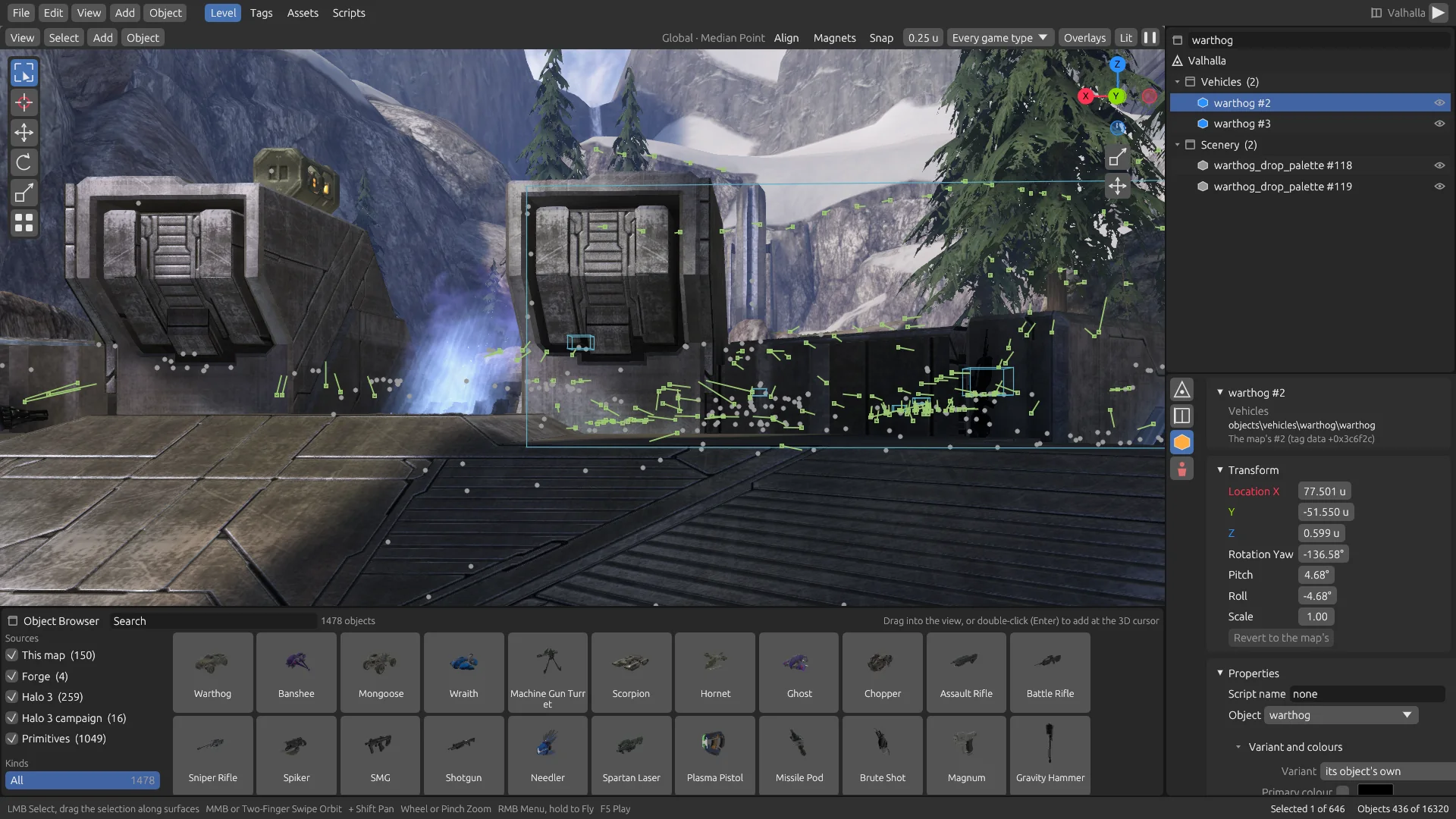
3D viewport
A map opens with the camera at eye height over where its first player starts, and the 3D cursor there. On a multiplayer map that's the first spawn point. The view shows the selection outlined in orange, origins and markers, the names of what's selected, the gizmo and the 3D cursor.
The header
On the left are the menus View, Select, Add and Object. The rest are on the right, and a narrow window leaves some of them out:
| Control | Does |
|---|---|
| Align | What's dropped, dragged along surfaces or dropped to the ground turns to the slope it lands on, keeping its heading |
| Magnets | A moved object's corners, edge middles and face centers snap to those of objects around it, within 0.3 units, as in Forge |
| Snap | Always snap. Without it, Ctrl snaps while you transform |
Move step (u) | The snap grid, in world units. The Scene tab's Snapping panel has the rotate and scale steps too |
| Game type filter | Every game type, or one game type's objects alone: the others are neither drawn nor selectable. Forge's own items stay |
| Overlays | Origins and markers, Trigger volumes, Names of the selection, Gizmos, AI firing positions, Painted decorators, and the debug drawing |
| Shading | The lighting views: it shows the one in use, Lit to start with |
| Pause | Hold the world still, or let it run (Space) |
While a transform runs, the header turns into its readout. While you fly with Shift+`, it shows the keys and your speed.
The toolbar
At the left of the viewport, shown and hidden with T:
| Tool | Does |
|---|---|
| Select Box | Click to select, drag to box select |
| Cursor | Place the 3D cursor |
| Move, Rotate, Scale | Show that gizmo on the selection |
| Paint Decorators | The decorator brush |
The sidebar
At the right of the viewport, shown and hidden with N. Item has the active item's transform. View has the fly speed, the 3D cursor's coordinates and the camera's position.
Moving objects with the mouse
A drag that starts on a selected object works like a drop from the object browser. The object you grabbed follows the level, or the top of another object, under the pointer, passing through itself. The rest of the selection keeps its place beside it. Let go and the move is one undo step.
Outliner
The top of the right side lists the scenario by kind: every object kind, then markers, lights, decals, Forge's items, and AI starting locations and firing positions with their squads, zones and areas. Filter narrows it, each row has an eye to hide it, and a click selects.
Rows are colored by state: yellow for edited, green for added, dark red for deleted.
Object browser
Under the viewport (View → Object Browser), this shows every object the map's palettes hold and, on a multiplayer map, every object Forge offers: other maps' and missions', Halo 3: ODST's if you have it, the primitives, and those of the mods you have on. Guardian offers about 1,400. These come from the Forge library, so the first multiplayer map you open may take a minute longer. A mission offers its own objects.
- Sources has a box for each source: This map, Halo 3, Halo 3 campaign, Primitives, a mod's title, Imported and New tags. Untick one to leave it out.
- Kinds picks All, Primitives, Forge, Prefabs or one object kind, with how many of each.
- Search finds a tile by its name or its tag's name.
Each tile shows the object's model, or its kind's icon until the picture is made or if its map isn't installed. Tiles use the names Forge's menu uses, so an object has the same name on every map.
| Do this | To |
|---|---|
| Drag into the viewport | Make it at once. It follows the pointer over the level and object tops. Let go and it stays, selected. Dragged back out, it goes |
| Double-click, or Enter | Add it at the 3D cursor. If it would stand around the camera, the view backs away to show it |
On a mission, a tile with a dot in its corner belongs to a zone that isn't loaded. Its tooltip names the zone, and adding it loads that zone. A dimmed tile says Not placeable and why: no zone loads the object, or only a BSP outside the zone set does.
Object tab
The properties editor has four tabs, the icons at its left edge: Scene, World, Object and AI. Object shows the active item: its kind and tag, where it comes from, and these panels.
Transform
Location X, Y and Z, Rotation Yaw, Pitch and Roll, Size Length, Width and Height for a volume, and Scale. Drag a value, or click it to type one. Revert to the map's takes back what you changed.
Properties
- Script name: the object's name for scripts. Another object's name is refused.
- The object: another entry of its kind's palette, swapped at once. An added object can become anything the browser offers of its kind.
- Placed by scripts only: the map doesn't place it at the start, a script does.
- All fields in Tags…: every field of this placement in the Tags workspace.
- Team: on a mission, for objects with multiplayer data. On a multiplayer map, it's in Forge's rows.
Variant and colours
For bipeds, vehicles, weapons, scenery, machines, controls, terminals, crates and giants, on missions and multiplayer maps alike. Each change remakes the object at once and is one undo step.
- Variant: one of the model's variants by name, such as a Warthog's
gauss. Another map's object takes its variants from its own map. - Primary to Quaternary colour: each set or not, any color, or by name one of the colors the object offers.
Forge's properties
On a multiplayer map, the Object tab adds the rows of Forge's Properties tab as subpanels. Each change is live at once, one undo step, and saved with the map. Hold Alt while changing a value to give it to every selected object that has that row, within the one undo step.
Material and Size (primitives)
- Material: a grid of pictures, the same choices as Forge: the map's own surfaces, energy shields and glass, other maps' surfaces, and Invisible. The category menu has All, Recent, This map, Special and the catalogue's own, and Search finds a surface.
- Tint, Texture scale, Offset U and Offset V.
- Size, per axis. This swaps in another primitive of that size. A size the map can't offer says so.
Forge
| Row | For | Does |
|---|---|---|
| Place at start | Objects | Off: it comes once its respawn time has passed |
| Respawn, Abandoned | Objects, vehicles | Respawn time. How long an empty vehicle waits before it respawns |
| Symmetry, Game types | Objects | Which games place it. Every game type sets them all |
| Physics | Objects | Normal, Fixed or Phased |
| Team, Team (barrier) | Objects | Whose it is. With players passing through, a barrier only that team passes |
| Passes through | Objects | Players, Vehicles, Projectiles: passthrough |
| Spare clips | Weapons | Clips it comes with beside the loaded one |
| Spawn order | Goals | Which of the goals of its kind comes first |
| Channel, Takes | Teleporters | Channel A to Channel Z. Whether it takes players and vehicles |
| Boundary | Spawns, teleporters, goals, scenery, crates | The object's own, Sphere, Cylinder or Box, with Radius, Width, Length, Reaches up and Reaches down |
| Power channel | Machines, controls | None or Channel 1 to Channel 31: switches and devices on one channel work together |
| Drivable, Destructible | Giants | The Scarab's options |
Another map's object gets the right rows too: its type is read from its own map, so a teleporter from another map has its Channel row.
Run-time limits
The least and most of this object's kind a game keeps, beside how many are placed. The map's own puts them back.
Forge's items
The object browser's Forge kind has items that aren't objects in the usual sense: a Kill Volume, a Garbage Volume, a Screen Effect, a Light, and a spawner for every AI kind the map took. Add one like any object. Each is an item of its own in the outliner, drawn as its zone in its kind's color, and you move, turn, copy and delete it as usual. They're saved beside the map, in its Forge layer.
| Item | Rows |
|---|---|
| Kill Volume | Kills (Everyone or a team), Vehicles (Destroyed too), Deaths read |
| Garbage Volume | Removes, After |
| Screen Effect | Look, Strength, Seen by |
| All three volumes | Visibility (Shown in games too; off, it's drawn only while editing), Shape, and its size |
| Light | Type (Point or Spot), Colour, Brightness, Reach, Cone, Effect |
| AI Spawner | Team, Shoots at, Moves, Weapon, Returns, Place at start |
Lights light and AI spawners place at once. Volumes act in a playtest, not while you edit. See kill and garbage volumes, screen effects, lights and AI for what each one does in a game.
Forge's tools
- Object → Rows of Copies… copies the selection N times, each a step further. The step starts as the active object's length along its forward axis. Make Copies is one undo step.
- Magnets in the viewport's header snaps a moved object to those around it.
- Object → Save Selection as Prefab… writes a Forge prefab to your
Prefabsfolder. Forge's Tools tab lists it too. The browser's Prefabs kind places one where you drop it, as one undo step. - Copy Forge Properties and Paste Forge Properties in the Object menu: a primitive's onto primitives, a Forge item's onto its kind.
- Select → Similar Object, Similar Material, Grow, as Forge's Tools tab selects.
- The game type filter in the header shows one game type's objects alone.
Scene tab
Map
The map that's open, and Open Map….
World
On a multiplayer map, the settings of Forge's Map tab, live, undone, kept by Save Scenario and saved by Compile Map. Every game on the map plays them. A mission keeps its own, and uses the World tab.
| Row | Does |
|---|---|
| Sky, Sky height | The map's own, or any installed map's by title. The height lifts another map's sky above this map's walls. A map with no sky can't take another's |
| Look, Look strength | A look over the whole map, as a Screen Effect gives the view inside it |
| Exposure | How bright the camera sees the map. A game's own Exposure option takes precedence |
| Fog | The map's own, On or Off. A game's own option takes precedence |
| Invisible walls | Off lets players and vehicles through the play area's walls, ceilings and slip surfaces |
| Guardians | Off spares players out of bounds. Kill volumes placed in Forge still kill |
| Gravity | How strongly everything falls |
| Back to the map's own | Clears them all |
Palettes
Sapien's edit types. Choose a kind, and each palette entry shows how many objects it places and what they become if it's removed: another entry, or deleted. Remove takes the entry out, as one undo step saved with the map. Later entries move up, and every placement that names them follows.
Zones
What of a mission is loaded. A multiplayer map says One zone set: everything the map places loads.
- Zone set lists the mission's zone sets with their BSPs. Choosing one switches to it as the mission's scripts would.
- BSPs: each loaded or not. Turning off one of the zone set's keeps the rest. Turning on one outside it switches to a zone set that has it. A line says whose placed objects are loaded.
- Designer zones: each with Loaded, live, and Zone set, whether the zone set loads it, which is saved and compiled.
An added object whose zones a switch unloads leaves the game, and comes back where it stands when they load again.
Budget
How much of the engine's room the level takes, updated each second, as a meter for each of objects, lights, effects, particle systems, particles, decal systems, decals, AI actors, AI props, squads, sound sources, looping sounds and device groups, plus Object memory. On a multiplayer map, Forge placements and Forge budget too.
Scenario
Scenario name, the file it saves to, Save Scenario and Open Scenario…. See saving.
Compile
Package name, a count of what's moved, deleted, added and placed, Compile Map, and on an installed multiplayer map, Compile for Reclaimer. See recipes.
Simulation and Snapping
Pause the game and Play the map. Always snap, with the Move, Rotate and Scale steps.
World tab
The globe icon: the scenario's own sky, atmosphere, weather and camera, on any map, missions included. Every value is a tag edit: written into the game at once, one undo step, saved and compiled. Without the tags folder, fields aren't named, and each panel offers the tag in the Tags workspace instead.
| Panel | Holds |
|---|---|
| Scenario | Local north, a multiplayer map's Forge budget, and the tags the scenario names for the whole map: Camera effects, Screen effect, Atmosphere, Lighting variations, Performance. Each can be another of the map's tags, or Open in Tags |
| Skies | The sky objects the scenario makes |
| Atmosphere | The atmosphere tag's settings, each a subpanel of fog, sun and scattering fields. Open the atmosphere in Tags shows the rest |
| Atmosphere palette, Weather, Camera effects | The scenario's palettes: which setting a cluster takes, wind, a cluster's exposure and bloom. The map keeps a copy in every BSP, and an edit changes those too |
The engine reads atmosphere settings every frame, so a new sun color or fog distance shows as you drag it.
AI tab
The person icon: a mission's AI. A multiplayer map has none of its own: use Forge's AI spawners. Four trees, each with a Filter, and the chosen item's fields below. New things go at the 3D cursor, so its coordinates are here too. A row chosen selects its marker in the view, and a marker selected in the view chooses its row. All fields in Tags… opens any element in full.
| Item | Fields | Actions |
|---|---|---|
| Squad | Name, Team, Squad group, Initial zone, Initial objective, Initial task | Place squad puts it in the game now. Erase squad, Erase all AI, New squad, Duplicate squad, New fire team, Remove squad |
| Fire team | Count (normal), Character, Weapon, Secondary weapon, Equipment, Vehicle | New starting location, New fire team, Remove fire team |
| Starting location | Name, its own character, weapons, equipment and vehicle, Seat | Moves in the view like any marker. New starting location, Remove starting location |
| Zone | Name, BSP | New area. Zones can't be added or removed |
| Area | Name | New firing position, New area, Remove area |
| Firing position | Shows its area, cluster and sector, which the engine works out as you move it | New firing position, Remove firing position |
| Objective | Name, Zone, its squads, its task tree | New task, New objective, Remove objective |
| Task | Name, Priority, Least squads, Most squads, Most bodies, Filter, Least strength, Squad group, Entry script, Command script, Exhaustion script, Condition, Areas | New child task, New task, Remove task: its children move up to its parent |
| Hint | Kind (jump, climb, well, flight), the height a jump or climb forces, its points as markers | New jump hint and the like, Remove hint |
An edit of a value the map already keeps goes into the game at once, and Place squad shows the squad as it is now. Anything that adds or removes elements shows at once in the tab and the view, and reaches the game once the map loads again: choose Load into Game in the AI tab, or press F5, which loads it first.
Scripts name squads, trigger volumes and cutscene flags by their place in their block. Removing one moves the ones after it, so scripts may then name the wrong one. The Kit says so when it happens. A task's Condition has to be one that another task of the map already has. See campaign missions for what else to watch.
Markers
Player starts, trigger volumes, cutscene flags and camera points move like objects, and are added (Shift+A) and removed (X, Delete) like them. A save rebuilds their blocks. New volumes start 2 units on each side, and new camera points are named kit_camera_N.
Name a trigger volume or cutscene flag in the Object tab: type the name and press Enter. Scripts name it this way. A name another of its kind has is refused. New text joins the map's strings when you save.
A moved marker's data changes in the game at once, so a trigger volume tests where it now is. New markers reach the game with the saved map.
AI starting locations, firing positions and hint points belong to their squads, zones and hints: add and remove them in the AI tab. Firing positions and hint points show in the view with Overlays → AI firing positions.
Object → Drop to Ground (Page Down) works on markers too.
Lights
The scenario's own lights, on any map, in the outliner's Lights. Add → Scenario light places one at the 3D cursor. It moves, turns, copies and deletes like any item: a frustum shines along its forward. Selected, a light shows its reach. Every change is live, one undo step, saved and compiled.
Halo 3 has no light fixture devices. Its fixtures are objects whose tags attach a light, placed like any object. Forge's Light is a separate thing: this one is the scenario's.
| Panel | Holds |
|---|---|
| Light tag | The palette's tags, then the map's other light tags, with a search. A tag the palette lacks is added when you save. Palettes often start with a faint tag, so pick a bright one if you see nothing |
| Its own settings | Its own shape: Shape Sphere or Frustum, Reach, Fades from, Near width, Height scale, Angle. Off, it takes its tag's. Lit for: the tag's choice, the game only, the game and lightmaps, or lightmaps only. Cinematics only. Lightmap half-life, Lightmap scale |
| Its light tag | Shared by every light of the tag: Tag shape, Tag reach, Tag near width, Tag height scale, Tag angle, and its Colour and Brightness functions |
A scenario light lights the game as it runs, as a dynamic light. To bake it into the map's lighting as well, see Re-bake Lighting.
Decals
The scenario's decals, in the outliner's Decals. Add → Decal places one at the 3D cursor, lying across its up axis, so Pitch 0 is on a floor. Each moves, turns, copies, deletes and takes another Decal system, with a search. Changes are live, and a save rebuilds the map's decals so a game draws them.
The game draws a decal at its decal system's size. Scale only changes the square in the Kit's view.
Decorators
Choose Paint Decorators in the toolbar, and the viewport's header gets the brush: Decorator set, Decorator type, Radius, Density in decorators per square unit, and Erase.
- Paint over the level's surfaces. Each decorator stands upright on its surface, turned at random, at a scale from its type and no nearer another of its set than its type allows.
- A stroke is one undo step. Once it ends, the game draws what you painted.
- Erase takes painted decorators under the brush away. It doesn't remove the map's own.
- Overlays → Painted decorators shows them as tufts, and they always show while you paint.
- A map's built decorator sets keep no type names, so each mesh of a set's model shows as a type.
Save Scenario keeps them, and Compile Map builds them into the level. Compiling a map again builds them once. A game on the compiled map draws them.
Timeline
View → Timeline, for a mission's cinematics. Choose the Cinematic and its Scene: the shots run end to end as strips over a ruler of seconds, and clicking or dragging along them, or the arrow keys, scrubs the playhead. The view becomes that frame's camera.
| Control | Does |
|---|---|
| ▶ Play | Runs the scene's camera through the view, at thirty frames a second |
| Play in the game, Stop | Plays the cinematic in the Kit's game: its objects, camera, letterbox and sound. Stop gives your camera back |
| Key the view | The playhead's frame takes your view's camera, and becomes a key |
| Smooth between keys | Every frame between the keys around the playhead, in one shot, becomes an eased blend |
| Shot frames | The shot's length. Shorter leaves its last frames unplayed. Longer copies its last frame on and lengthens the script's waits |
| Add shot | A copy of the scene's last shot after it, with its own script |
| Load into game | Longer and new shots reach the game once the map loads again |
A cinematic that ends while the world runs takes the game back to the save made as it began. The Kit then makes your added objects again where they stand, and puts moved objects back where you moved them. The mission Halo's opening cinematic does this a few seconds after it opens.
Lighting views
The header's shading menu:
| View | Shows |
|---|---|
| Lit | The game's own lighting |
| No lightmap | The surfaces' colors alone, unlit |
| Lightmap charts | Each part colored by its lightmap |
| Per-pixel only | Parts lit from lightmap textures are lit, the rest unlit |
| Per-vertex only | Parts lit per vertex are lit, the rest unlit |
| No dynamic lights | Static lighting without dynamic lights |
A playtest shows the game's own lighting.
Playtesting
F5, ▶ or File → Play Map steps the Kit aside. The camera and input are the player's, the HUD comes back, and the map plays with every edit in force. A multiplayer map plays Slayer with no time limit, and a mission plays at normal difficulty from its start. Debug drawing and the console work during a playtest.
F5 again, or RETURN TO RECLAIMER KIT under RESUME GAME in the pause menu, brings the Kit back with your camera where it was. The level goes back to how it was: the player's body and everything the playtest made are gone, and every object is made again where its placement says.
The playtest runs one game type, which only makes that game type's objects. Use the game type filter to see the others, and host a game of that type to test them.
What shows when
| Edit | Shows |
|---|---|
| Objects moved, added, deleted; Forge's properties; variants, colors | At once |
| World, lights, decals, painted decorators, zones | At once |
| Tag values, tag references, shader parameters, functions that fit | At once |
| Moved markers, AI values | At once |
| New markers | In the outliner and view at once, in the game with the saved map |
| Tag blocks reshaped, functions that grow, AI added or removed | In the Kit at once, in the game after Load into Game. F5 does this first for AI |
| New or duplicated tags, imported tags, sounds, strings, compiled scripts, re-baked lighting | The map loads again by itself, with your edits given back |
| Pictures imported in Assets | In the Kit's preview at once, in the game once the saved map is opened |
An object something destroys where it stands is made again while you edit, and the status bar says so once: move it, or a game will lose it too.
Tags
The tag editor: Guerilla's part of the Kit. The tag explorer is at the left, and each open tag is a tab of its own, made of subpanels that open and close.
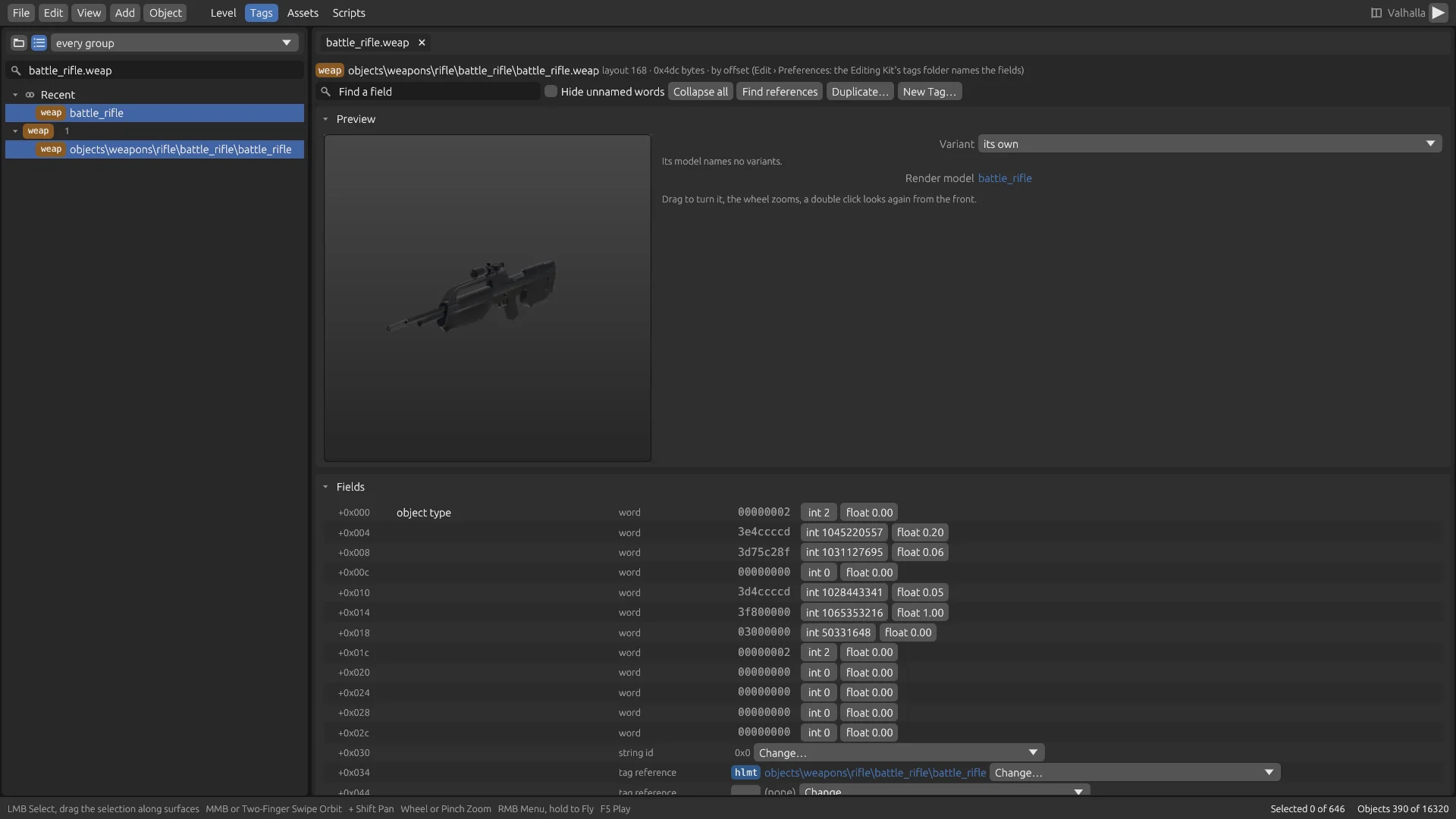
Tag explorer
Every tag of the open map, each with its group's badge: objects orange, models blue, shaders and bitmaps purple, sounds green, effects red.
- The header's buttons list tags by Folders or by Groups, and the group list shows one group alone.
- Find a tag searches names:
mongoose,mongoose\mongoose.vehi, or a group,vehi. - Recent at the top lists the tags you opened lately.
- A tag opens in a tab, or comes forward if it's open. A tab's × or a middle click closes it.
A tag's header
| Control | Does |
|---|---|
| Find a field | Filters the fields by name. A block or struct shows, opened, when something inside it matches |
| Hide unnamed words | Only the fields the layouts know: no plain words, pads or skips |
| Collapse all | Closes every block |
| Find references | Adds Referenced by N tag(s), a subpanel of the tags that reference this one. Click one to open it |
| Duplicate… | A copy of this tag under a new name, its blocks and data with it. The name offered ends in _copy |
| New Tag… | An empty tag of a group the map has |
| Load into Game | Appears when tag data has grown: the map loads again with it |
A new or duplicated tag is made at once, and the map loads again with your edits given back. It's then in the explorer and every reference's picker. An object's copy is in the object browser under New tags, ready to place. It saves and compiles like any tag.
Preview
- A bitmap shows on a checker, with its Image number, Size, Kind, Format and Data, and Open in Assets to export or replace it.
- An object or model shows its model alone, in the Variant you pick, with its Render model as a link. A render model shows the permutation you pick for each region. Instanced parts, such as a campaign Brute's armor, aren't drawn.
- Drag to turn it, the wheel zooms, and a double-click looks from the front again.
Fields
The tag's structure in order: blocks with their element count and size, tag references with their group's badge, string IDs, data and resources, with plain words between them. With the tags folder set, every field has its name and type:
| Field | How you edit it |
|---|---|
| Integers, reals | Drag or type. Angles are in degrees |
| Enums, flags | Menus of their options, checkboxes by name |
| Points, vectors, planes, bounds | Each component |
| Colors | Color pickers |
| Strings, group codes | Typed |
| Tag references | Change… lists tags of its group, searchable, or none. The name is a link that opens the tag |
| String IDs | Change… lists the map's strings. Or type new text and choose Use: the map's strings grow by it |
| Functions | Edit function… |
| Plain words, without names | As an integer or a float, shown in hex beside them |
A change shows in the game at once, wherever the game reads that field: change a magazine's rounds and the next rifle has them. It's undone with Ctrl+Z and saved with the map.
Blocks
Blocks open in place, inside their struct. Choose the element shown by number, such as #0 of 8, and use its buttons, in any block, including blocks inside blocks:
| Button | Does |
|---|---|
| Insert | A copy of this element right after it |
| Copy to end | A copy after the last element |
| Up, Down | Moves it one place |
| Delete | Removes it, and later elements move up |
A copy is deep: its own blocks and data are copied with it, so editing the copy never touches the original. Each change shows at once, is one undo step and saves with the map. The game takes it once the map loads again: choose Load into Game.
Functions
Edit function… opens a window with the curve drawn from input 0 to 1, as the engine evaluates it, and every value that shapes it: its output, whether a value or one to four colors, its range, its clamp and threshold, and the curve's own values. You can change the shape too: its Curve type, of ten, whether it's Ranged, and a segments curve's Segments. A function that fits its place is live. A longer one shows at once and reaches the game when the map loads again.
Shader parameters
A subpanel of every render method: shaders, terrain, decals and the rest, by the names its template gives them. Each edit is live in the level and shown in the Preview on the model that uses the shader, or a sphere.
| Part | Holds |
|---|---|
| Textures | Each a bitmap: a link, Change…, and its image. A bitmap the map holds no pixels of is refused |
| Values | Colors, a texture's scales and offsets, single values |
| Integers, Switches | By name |
| Animated | Each value's type, input, range and period, and its function |
A value only shows where the shader's template uses it. Some metals take their color from their maps, and don't change with their albedo_color.
Assets
Laid out like Blender's Asset Browser. Catalogs at the left lists the map's assets by kind, with how many: Textures, Render models, Sounds, Animations, Collision models, Physics models, Shaders and Structure. The middle is a grid of thumbnails or a list, with a Search box and a size slider. The sidebar at the right shows the chosen asset, and Open in Tags opens its tag.
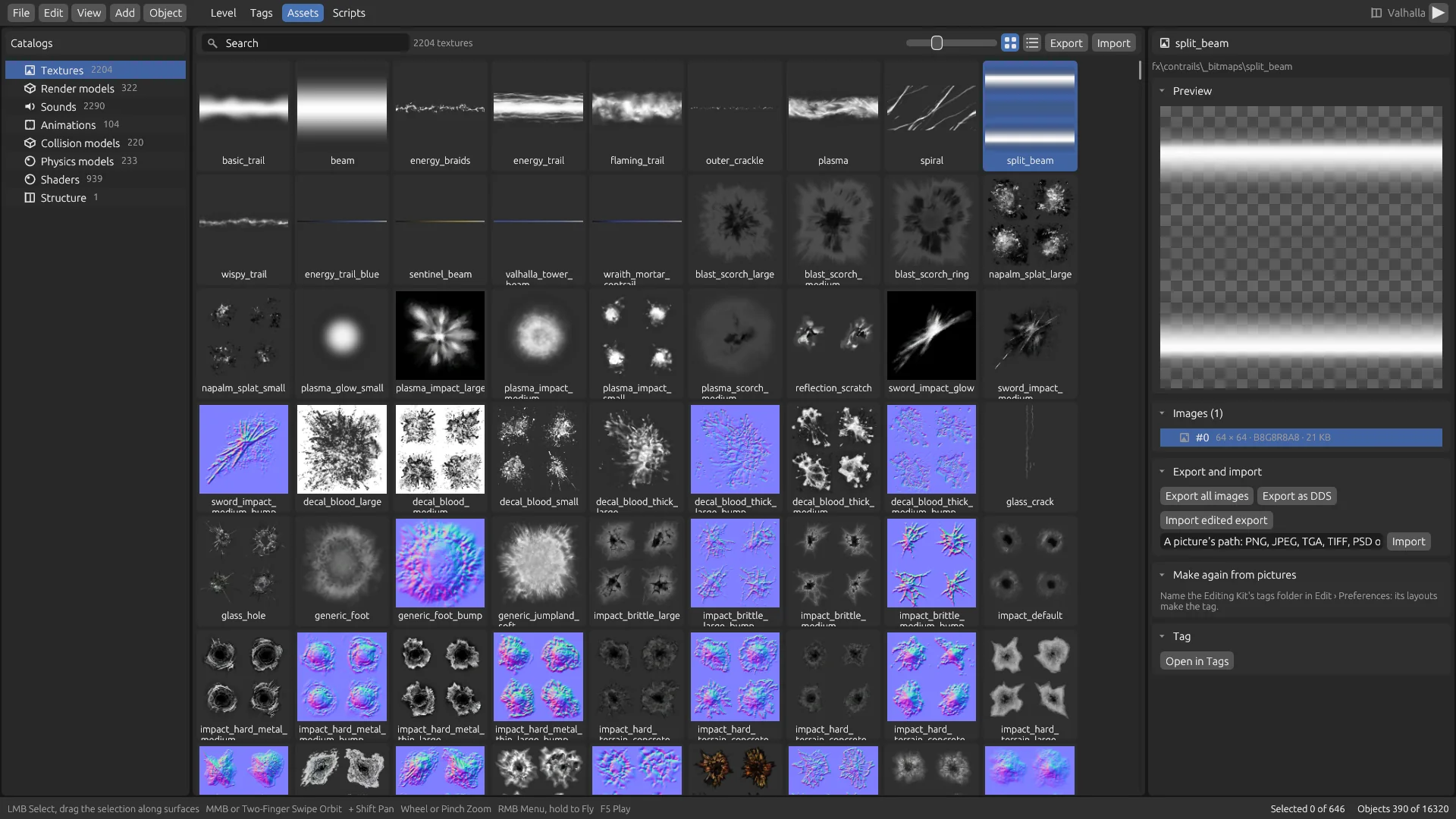
Exports go to Kit Exports/<map>/ in your player folder, by the tag's path. Shaders and structure have no export.
Textures
Images lists the bitmap's images, with each one's size, kind, format and data. Under Export and import:
| Control | Does |
|---|---|
| Export all images | A PNG per image. A cube map is the cross of its faces, and an array's layers and a 3D texture's slices are a file each |
| Export as DDS | A DDS per image, with its whole chain in its own format |
| Import edited export | Takes back whichever of them you saved last |
| Path field, Import | Any PNG, JPEG, TGA, TIFF, PSD or DDS. Separate several paths with ; for a cube map's faces or an array's layers |
A picture is scaled to the image's size, its mips are made by halving, and it's encoded in the image's format: A8, R8, R8G8, 16- and 32-bit color, BC1 to BC5, and the signed and float formats. A DDS of the image's kind, size and format goes in as it is. The preview shows the import, and the game shows it once the saved map is opened.
A cube map's faces go in order: +X, −X, +Y, −Y, +Z, −Z. Give six pictures, a strip of squares, or a cross of four faces across and three down, or three across and four down.
Make again from pictures, with the tags folder set, makes the bitmap tag anew: any size, in the format of the Usage you choose. Make the tag again loads the map again with it.
Render, collision and physics models
A render model shows alone in Preview, with Permutations to pick each region's. Export offers Export as JMS for all three kinds, and for a render model Export as OBJ and Export as glTF too, which writes a .glb file with Y up. A JMS export reads back through Import Tags.
Sounds
Sound gives the codec, class, bank and longest time. Permutations lists them by pitch range, with each one's length, and a new one is named by its file in the edited color. Play plays the chosen permutation, and a double-click plays one.
- Export all permutations writes each as a 16-bit WAV file.
- Import edited export takes the chosen one's file back.
- Name a WAV, AIFF or Ogg Vorbis file in the path field, then choose Import into the permutation or Import into every permutation.
Audio is made 16-bit at 48 kHz with each permutation's channels. The map loads again, and you hear it in a playtest. Compile Map puts the Kit's sound bank in the package, and hosts share it with the map or its recipe.
Animations
An animation graph lists its animations, each with its JMA kind. Export all as JMA writes each as its file: .jmm, .jma, .jmt, .jmz, .jmo, .jmr or .jmw. Import into the graph takes a file back, replacing the animation of its name or adding it. Colons in names become spaces in file names, and back. Import needs the tags folder, because the graph is made again from its tag there.
Strings
The header's Export → The map's strings writes every language with text in the map, a file each: strings.txt for English, and strings.german.txt and so on. They're UTF-8, one string a line: its name, a tab, its text, with \\, \n, \r and \t for a backslash, line breaks and tabs.
Edit them in any text editor, then choose Import → Edited strings. Each string that differs takes the new text, in its language, as one step. A name the map doesn't have is counted and left. The map loads again with them, and Compile Map and recipes carry them.
Scripts
Laid out like Blender's Text Editor. A map's compiled scripts and globals read back as HaloScript, each with its type, parameters and statements, and the Kit reads the engine's function names from your game's own files. Find a script searches the list at the left, and icons tell scripts and globals apart.
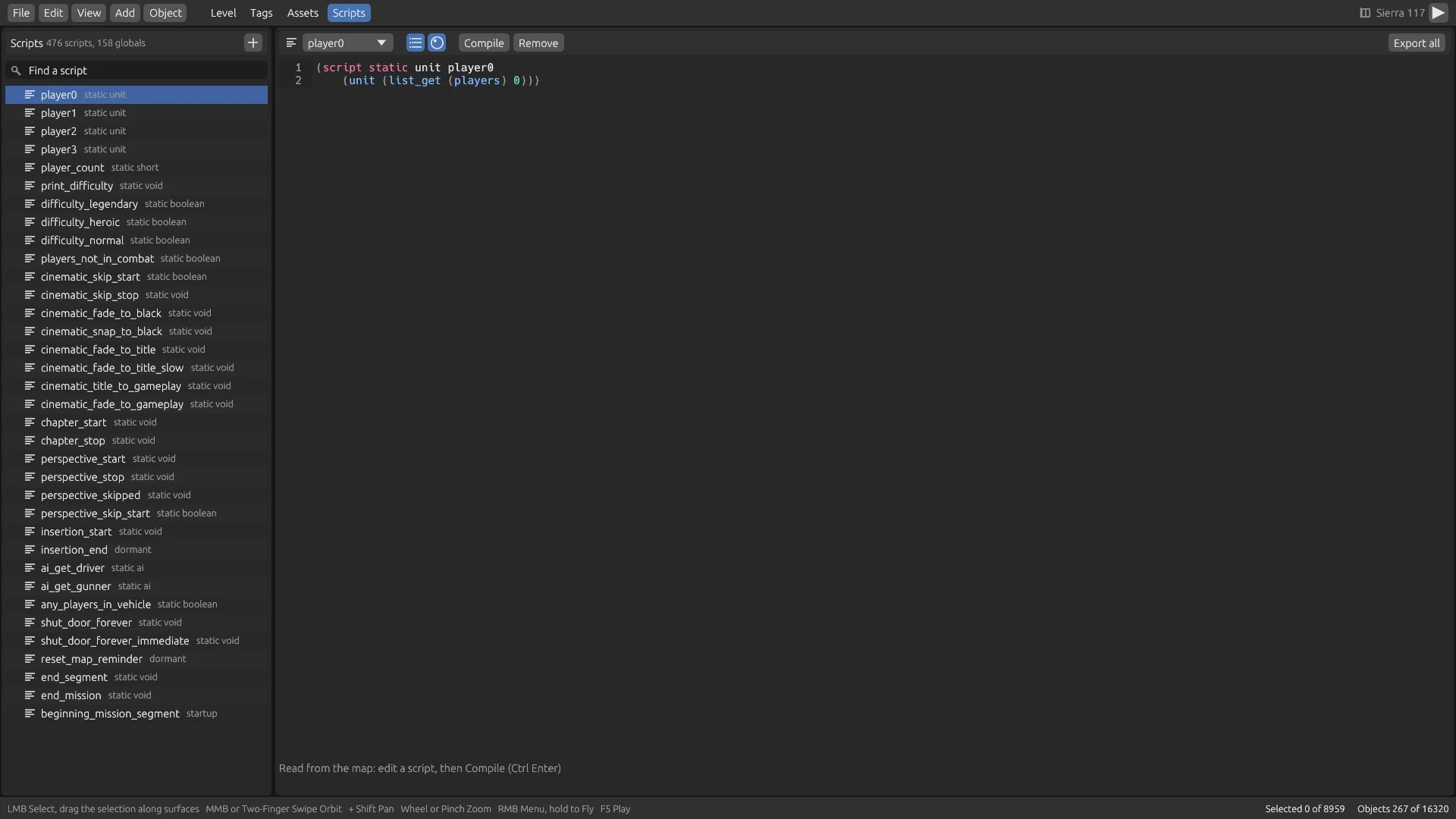
| Control | Does |
|---|---|
| New Script, the list's + | Adds new_script_1, dormant, as a start |
| Compile, Ctrl+Enter | Compiles every script and global, the way the Editing Kit's Tool does |
| Remove, Restore | Leaves the chosen one out of the map, or keeps it again. A new one simply goes |
| Export all | Every script and global as one file, Kit Exports/<map>/scripts.hsc |
| Line numbers, Syntax colours | Turn each on or off |
An edited script's row turns the edited color, and editing it back to the map's text is no edit. An error shows at its line: the number goes red, its text is marked, and the message is under the editor, such as Line 3, column 5: fade_out takes another number of arguments than 3. The editor turns to the first script with an error.
A clean compile says so, such as Compiled: 476 scripts, 158 globals, 24,342 syntax nodes, and the map loads again with your scripts, so F5 plays them. Save Scenario keeps your edits. Compile Map compiles them into the map, and refuses scripts that don't compile. A recipe carries them, and a joiner's game compiles them the same way.
The compiler produces the same output as Tool: every installed map's scripts, read back and compiled again, match the map's own.
Console
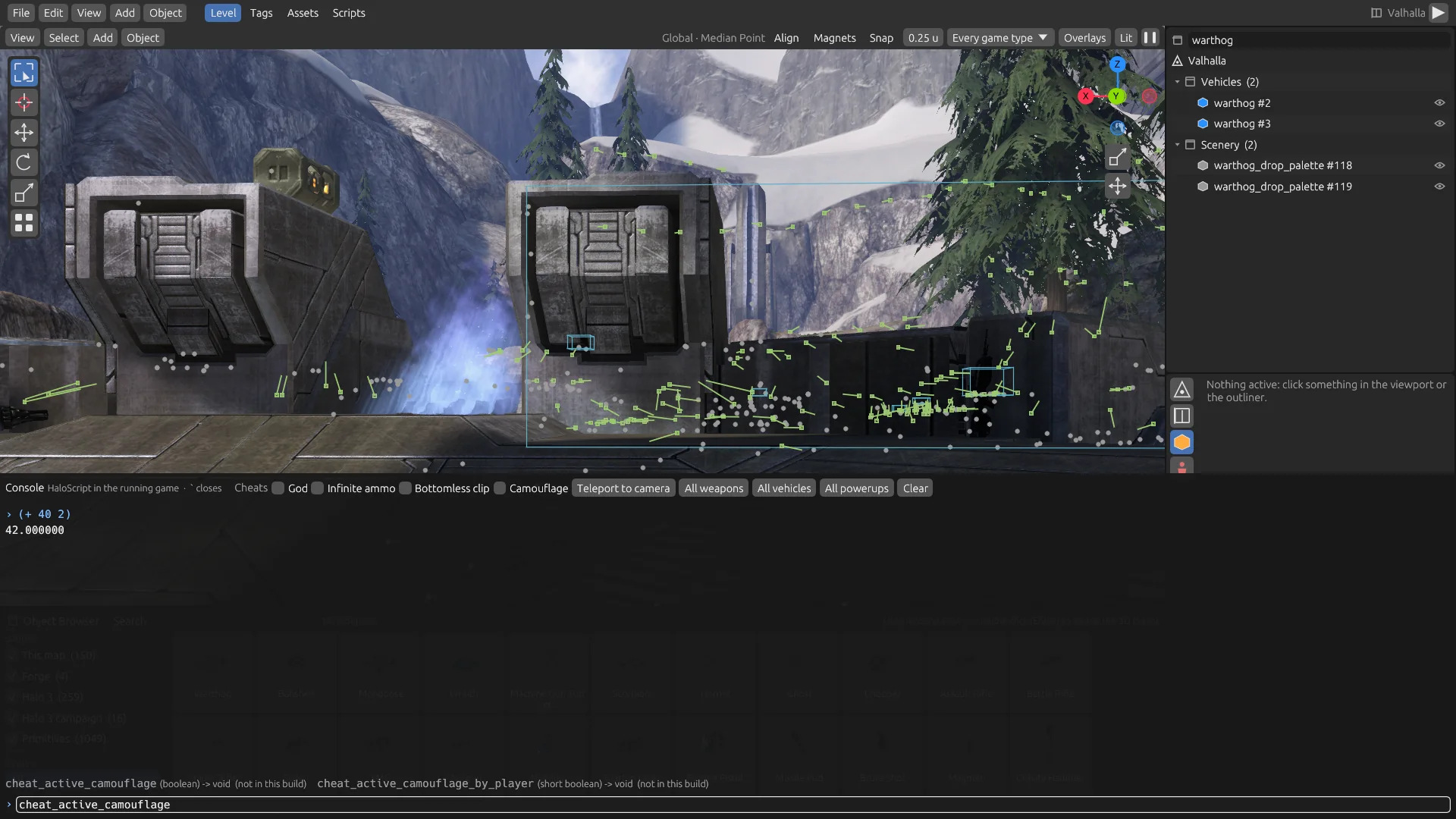
` or View → Console opens it, over the Kit's view and over the map while you playtest. It evaluates HaloScript in the running game with the engine's own compiler.
| Key | Does |
|---|---|
| Enter | Evaluates the line: a call with or without its outer brackets, such as ai_erase_all or (set cheat_deathless_player true), or several in a begin |
| ↑ ↓ | Step through the lines you typed before |
| Tab | Completes the word under the cursor. Again: the next match |
Matches show under the output: the engine's functions and globals with their value types, and the map's own scripts and globals once the Scripts workspace has read them. Each value, each print, including the map's scripts', and each compile error comes back in its own color. Clear empties it.
Of the retail engine's 1,379 script functions, 954 work. The rest do nothing in a release build, mostly debug and development functions, and show dimmed as (not in this build).
Cheats
The console's header has each as a click, and each is the line it stands for:
| Control | Does |
|---|---|
| God | Local players take no damage and don't die |
| Infinite ammo, Bottomless clip | Their weapons stay full |
| Camouflage | Active camouflage |
| Teleport to camera | The first player to where the Kit's camera last was |
| All weapons, All vehicles, All powerups | One of each of the map's around the first player |
Debug drawing
Toggle these in the viewport header's Overlays or View → Debug Drawing. They draw over the Kit's view and over the map while you playtest, through the first player's camera.
| Overlay | Shows |
|---|---|
| Collision | What a shot or a footstep hits: a grid of the engine's own rays across the view, level in cyan, objects in orange |
| Pathfinding | The floor sectors the AI walks, around the camera, in green |
| AI actors | Every actor where it stands, by team, with its combat status |
| AI objectives | Each objective's tasks at the middle of their areas, named, with a line to each area |
| Spawns | Player starting locations, each a figure facing its way |
| AI firing positions | The zones' positions. While you playtest, those around the player |
The engine's own debug drawing is left out of a release build, so the Kit draws its own.
Saving
Like Sapien and Tool, the Kit keeps two things apart.
Save Scenario Ctrl+S
Your work file: Kit Projects/<name>/<name>.rkscenario in your player folder. It names the map and lists every edit, and imported pictures and sounds sit in folders beside it. It's small: Guardian with two added objects is about 1.4 KB. Open it again and every edit comes back live, with nothing to undo.
Compile Map Ctrl+B
What people play: a package in Mods/<name>/ in your player folder. On a multiplayer map it's listed under its name, so guardian_kit shows as Guardian Kit. File → Open Map and the game's own menus offer it at once.
Save both: the scenario is what you keep working on, and the package is what you play and share. Open a scenario, change it, and compile again under the same name to replace the package.
Save As
An original map is never written. The first Ctrl+S or Ctrl+B on one opens Save As, and so does Shift+Ctrl+S at any time. It has Save Scenario and Compile Map, and the one you asked for is the blue button that Enter presses.
- A name is up to 64 letters, digits,
_and-, with no spaces. The default is the map's file name and_kit. - A map can't take an installed map's name, such as
guardianorshared, in any case. A scenario may. - The Scene tab's Scenario and Compile panels show the names too. Saving from them uses what's typed there.
Opening a scenario again
File → Open Scenario… or Recent opens its map, then gives back every edit once the objects merged in from other maps are known. If something's gone, such as a mod you turned off, the status bar lists what wasn't found. A scenario with imported tags reads your tags folder again as it opens.
How new objects are placed
An added object is placed as Forge places one: in every game type, symmetric and asymmetric, no team's, and at the start, whatever placement it was copied from. It keeps its own settings on the Object tab. Objects from other maps have their data packed into the compiled map itself.
Recipes and whole maps
A compiled map is a whole map file of about 200 MB, most of it the original map's data. Compile for Reclaimer avoids sending that around. It writes a recipe beside the map: your edits, plus the name of the installed map they apply to.
- As the game starts, any package in your Mods folder, including downloads, whose map is missing or was made from another recipe or another installed map gets its map made from your own installed maps. One that uses other maps' objects waits for the Forge library.
- A host shares the recipe alone, so a joiner downloads a few kilobytes. The checks ran from 2.9 to 14 KB. The joiner's game makes the map as the download ends, and it must match the host's, digest for digest.
- The map made is the same, byte for byte, as Compile Map's. That was checked on all 27 multiplayer maps, with other maps' objects, skies, materials and tag edits.
- A host only shares the recipe while its map really is the recipe's. Otherwise the map goes like any mod's.
The Compile for Reclaimer box is in the Scene tab's Compile panel, on by default for an installed multiplayer map.
| A recipe carries | It can't carry, so the package holds the whole map |
|---|---|
Placements, Forge's properties and items, World settings; tag edits, new and duplicated tags; scripts; strings; lights, decals, decorators; pictures imported into existing textures (in images/); new audio for existing sounds and its bank; rendered cubemaps | Anything from File → Import Tags…: tags, new bitmaps, new sounds, JMS models and levels. Re-bake Lighting with a changed light. Both need files another PC may not have, so the box turns off and says why. A map you opened from a package, not from your scenario. A mission: missions always compile whole. |
Compiling again without a recipe takes away the package's old recipe, so a host can't share a stale one.
A package may hold a .rkmap up to 16 MB, and picture data files up to 64 MB each.
Packages and file types
A multiplayer package
guardian_hogs.map          the playable map
guardian_hogs.forge.json   its World, materials, AI kinds and Forge items, if any
guardian_hogs.rkmap        the recipe, if compiled for Reclaimer
guardian_hogs.rkmap.built  which recipe and installed map made this map
images/                    imported pictures' data
halo3/fmod/pc/             the Kit's sound banks, if you imported audio
The map keeps the original's map ID and plays under the original's catalogue entry, with its own file, while it's selected. A game on the map plays its Forge file on every PC in the game, as a saved Forge map plays its own settings.
A mission package
ModInfo.json
CampaignInfo.json
campaign/010_jungle.json   the mission, with the installed mission's starts
maps/010_jungle.map        the whole mission map
File types
| File | Where | What it is |
|---|---|---|
.rkscenario | Kit Projects/<name>/ | Your scenario: JSON naming the map and every edit |
images/*.required, .optional | Beside a scenario or recipe | Imported pictures' data |
sounds/*.wav | Beside a scenario | Imported sounds |
.map | Mods/<name>/ | A compiled map |
.forge.json | Beside the map | What Forge keeps of a map |
.rkmap | Beside the map | The recipe: the scenario's form, naming its installed map by file |
.rkmap.built | Beside the map | Marks which recipe made the map |
sfx.kit.fsb, english.kit.fsb, sfx.kit_tags.fsb | halo3/fmod/pc/ in a package | Sound banks, each with an .info beside it |
.png, .dds, .wav, .jms, .obj, .glb, .jma and kin, .hsc, strings*.txt | Kit Exports/<map>/ | Exports. Rendered cubemaps go in its cubemaps/ folder |
| Prefabs | Prefabs/ | Forge's own prefab format |
kit-preferences.json | Player folder | The tags folder and recent items |
.scenario, .weapon, .vehicle and other tags | Your tags folder | The Editing Kit's files, only ever read |
All of these folders are in your player folder: %LOCALAPPDATA%\ProjectReclaimer on Windows, ~/Library/Application Support/ProjectReclaimer on macOS, and ~/.local/share/ProjectReclaimer on Linux.
Importing, kind by kind
| You have | Use | You get |
|---|---|---|
| PNG, JPEG, TGA, TIFF, PSD, DDS | Assets → Textures | New pixels in an existing image, any kind and format |
| The same pictures | Import Tags, Bitmap usage | A new bitmap tag, named by its path under the Editing Kit's data folder, else bitmaps\kit\<name> |
| WAV, AIFF, AIFF-C, Ogg Vorbis | Assets → Sounds | New audio for an existing sound |
| The same sound files | Import Tags | The sound its path names takes the audio. Otherwise a new sound tag, sound\kit\<name>, of one permutation. Use it from a tag reference |
| JMS 8197 to 8213 | Import Tags, Object of a model | Render, collision and physics models, a model tag, and a scenery or crate to place |
| JMM, JMA, JMT, JMZ, JMO, JMR, JMW | Assets → Animations | An animation replaced or added in the tags folder's graph of that name |
Edited strings*.txt | Assets, Import | New text, per language |
| Tags | Import Tags | Converted and built into the map |
An Editing Kit .scenario | Open Scenario | Its differences as your edits |
| ASS level | Import Tags | Unfinished: see below |
OBJ and glTF are exports only: the Kit writes them for use in other programs, and doesn't read them back. Bring models in as JMS.
New bitmaps
A bitmap is made the way Tool's bitmaps makes one for its usage: color maps DXT1 when every texel is opaque, else DXT5; bump maps DXN, from a height map; warp maps V8U8; interface bitmaps A8R8G8B8 without mips; sprites cut from a color plate, with the top left texel as the background; and cube maps, 3D textures and arrays from their faces, slices and layers. Detail maps' mip fading and forced formats aren't applied.
JMS models
A file in Tool's layout imports its whole model folder, into tags named after the folder:
render/*.jms     a permutation each
collision/*.jms
physics/*.jms    makes objects\crate\crate
A JMS file anywhere else is a model of its own, objects\kit\<name>\<name>: its triangles make the render model, except those of collision-only materials (@), and the collision model, except those for drawing alone (!). Its primitives make the physics model.
- Each material's shader is the map's of that name, else the tags folder's in the model's
shadersfolder, elseshaders\invalid. - Regions and permutations come from each material's second line,
(n) permutation region, or the file's name, in regiondefault. - Choose Scenery or Crate under Object of a model and the object is offered under Imported in the object browser.
JMS and JMA import were checked against files the Kit exports, every installed map's render models among them, and against the format as it's documented. They haven't yet been tried with files from a 3ds Max or Blender exporter. If one is refused, tell us on Discord.
Sounds from tags
The tags folder keeps samples in a format the Kit can't decode. A sound that an installed bank holds plays that recording. Your own sound tag plays the sources in the Editing Kit's data folder beside tags (.wav, .aif, .aiff or .aifc), or stays silent if it has none. The import's report says which.
Building
Compile Map
Ctrl+B runs in the background, and the status bar says when it's done. It refuses scripts that don't compile. Other maps' objects have their data merged in and packed into the map, and painted decorators, decals and lights are built in. A compile cut short leaves large working files beside the package: closing the Kit or the next start removes them.
Re-bake Lighting
File → Re-bake Lighting, also in a scenario light's panel, needs the tags folder. The map loads again.
- On an installed map it's a change on top: the map's lightmaps stay as they are, and the bake of the lights you changed is added to them, shadows and bounce included. A light that the map's lightmaps held and you moved or deleted is taken out again. With no light changed, nothing happens.
- Which lights count: one you added is baked, unless it's lit for the game alone or for cinematics only. One of the map's own is baked only if it says lightmaps itself.
- On an imported level the whole level is baked, its scenario lights among the lights.
A re-baked map is built with your tags folder, so its package carries the whole map.
Render Cubemaps
File → Render Cubemaps sends the Kit's camera to each cubemap the map's levels show, and renders its six faces from the game. The results are saved with the map like imported pictures, and each is also kept as a strip in Kit Exports/<map>/cubemaps/. It needs no tags folder.
Add → Cubemap point adds a new point, but only in a generated level. Import the level with Generate a level's data, not a map's build first.
Generating a level's data
A level's BSP and lightmap imported from the tags folder build as Tool builds them. What Tool generates beyond its tags comes from the installed map's build if it has one. With Generate a level's data, not a map's build, or for a BSP no installed map has built, the Kit makes it: pathfinding, water tessellation, decorators, ambient sound, decals and cubemap assignments.
Sierra 117's first BSP, Sandtrap's and Guardian's, generated this way, play as the originals do. Pathfinding has one sector per walkable surface, so AI walks it, but seams between BSPs and doors aren't made.
ASS levels
An ASS file (version 2) chosen in Import Tags becomes the map's first BSP and its lightmap, with its collision, portals and clusters built. This is unfinished. In the test room, only the floor is drawn, not the walls, ceiling or crates, and the player stops short of the walls at some places. Use it to experiment. It isn't a way to ship a level yet.
Verify Map
File → Verify Map… walks every tag of a map and lists every problem, not just the first:
- Tag references that name no tag (errors), or a tag of another group than the field's (warnings).
- String IDs the map lacks.
- Blocks and data outside the tags.
- Resources that name no entry, page or installed shared map.
- Bad indices: a render model's meshes, materials and nodes, and the scenario's palette entries.
Choose Verify the open map, Verify the compiled map, which checks what the last Compile Map wrote, or Verify a map file…. Problems are grouped by kind with a count, and a double-click opens one's tag in the Tags workspace. No problems: every reference, string, resource and index resolves. is what you want. Every installed map passes.
From the command line, with no window:
project-reclaimer --verify-map FILE [--installed FOLDER]It prints the report and exits with status 1 when the map has errors. --installed names MCC's halo3/maps folder, for the shared maps. Without it, the map's own folder is used.
Hosting and joining
A compiled package is a mod map, and everything in Mods and Host a server applies to it.
From your own PC
- Pick itIn HOST GAME, open MAP. In the MULTIPLAYER tab, your map is a card with a mod's mark. Choose it with USE.
- Share itUnder HOST SETTINGS, turn on Share mod files and set the Upload limit. Your map isn't on the Workshop, so without this, players who lack it can't join, and the game warns you.
- Open it upStep NETWORK to Online, and choose START GAME.
Forge works on your map too: choose FORGE in the main menu and pick it the same way.
On a dedicated server
Copy the whole package folder, map included, into the server's content/Mods, turn on share_mods, and name the map in dedicated.toml or a playlist by its title or file name. Host a server has the details. A dedicated server shares a recipe the same way a player does.
What joiners need
- For a recipe: the same installed map as the map was made from. If your map uses other maps' objects, sky or materials, their game builds its Forge library first if it isn't built, so they need the maps those came from installed. The map they make has to match yours, or the download stops with this PC's installed maps make another map.
- For a whole map: nothing but the download, of about 200 MB, in checked chunks like any mod map.
- Either way: a game hosted with Share mod files, and room on the disk. Download without asking in Settings → Mods skips the question.
A package carries its Forge file, so joiners get your primitives' materials, the World's settings, Forge's items and AI spawners, as the host does.
Objects off the ground
Halo 3 makes a multiplayer map's objects at rest on the host, whatever they stand on. On a mod map, a joiner's copies do the same, and stay asleep until something moves them. So a vehicle you left floating, tipped over or hanging on a wall stays where you put it, on every screen, until a player touches it. Drop to Ground is still the way to put one on the floor.
Campaign missions
Campaign editing is partial and on hold, while multiplayer gets finished first. It has not had the start-to-finish run every multiplayer map has. This is what's known.
What works
- Open any installed mission from File → Open Map… under Campaign. It opens at normal difficulty from its first start.
- Place, move, delete and restyle objects from the mission's own palettes. Other maps' objects and Forge's items are for multiplayer maps.
- Trigger volumes, cutscene flags and camera points, with names.
- Scenario lights and decals, checked on Sierra 117 and The Storm, compiled and played. The World tab's atmosphere, weather and camera effects, checked on Sierra 117. Decorators were only checked on a multiplayer map.
- Zone sets, BSPs and designer zones. An object placed outside its zones is loaded wherever it's needed in the compiled mission.
- The Timeline: cameras keyed and smoothed, shots made longer, new shots. Checked on Sierra 117 and The Storm.
- Tags, Assets, Scripts, the console and debug drawing.
- AI data: squads, fire teams, starting locations, areas, firing positions, objectives and tasks are edited, added and removed, and saved. Place squad works in the Kit's own game.
Compile and play
Compile Map writes an MCC-style campaign package of that one mission. It keeps the mission's ID, plays in its place, and always holds the whole mission map. The Campaign page lists it among the mods in its games window: see campaign mods. Compiled again, it keeps its campaign's ID.
project-reclaimer --campaign-mod jungle_kit --campaign 3010What doesn't
A compiled mission can crash when a squad is placed. On Tsavo Highway, the game crashed in every run once a squad was placed in a compiled mission, whether the Kit added the squad or it was the mission's own. An unmodified copy of the mission played as a campaign mod crashes the same way, and the installed mission doesn't. The cause isn't found yet.
- AI zones can be renamed, given a BSP and given new areas, but not added or removed.
- Jump, climb and well hints are saved and shown, but the AI only uses them once a level's pathfinding data is built again, which the Kit doesn't do for a BSP a map already has. Flight hints work.
- Task conditions are chosen from those the map's tasks already have.
- Removing a squad moves the later squads up, and scripts that name squads by place then name others. Change those scripts yourself.
- No recipes. A mission package holds the whole map, so share it only by hosting co-op.
Limits
- Halo 3 only. The Kit opens Halo 3's multiplayer maps, missions and mods. Halo 3: ODST's objects are in the object browser, but its maps don't open.
- Campaign is partial: see campaign missions.
- New levels. ASS levels are unfinished. A whole-level bake comes close to the original lighting, within a factor of about 1.6 on average, but isn't a match. Portals, clusters and pathfinding generate, but seams between BSPs don't.
- Sounds from tags. See sounds from tags.
- Bitmaps. Detail maps' mip fading and forced formats aren't applied to new bitmaps.
- No OBJ or glTF import. Those are exports.
- No export for shaders and structure.
- One editor at a time. There's no shared editing: use Forge to build with friends.
- A compiled map in Forge. A game that merges more into a compiled map, such as Forge on it, rebuilds its list of the map's own surfaces, and a primitive using one of those, not a catalogued or special material, can show another surface. A plain game on the map isn't affected.
Troubleshooting
| What you see | Why, and what to do |
|---|---|
| Import Tags… is dimmed | Open a map, and name the tags folder in Edit → Preferences… |
| Fields show as plain numbers | No tags folder is set, or the line under it in Preferences says it wasn't read. See the tags folder |
| The browser only offers the map's own objects | The Forge library isn't built, or failed. In SETTINGS under Mods, ASSET LIBRARY says which, and REBUILD builds it again. Leave any lobby or game first |
| Compile for Reclaimer is off, or missing | Off: you imported something the recipe can't carry. Missing: the open map is a package or a mission. Open your scenario to get it back |
| Not compiled: the scripts do not compile | Fix the errors in Scripts, which marks them at their line, or Remove the script |
| is an original map's name | Choose another name. Installed maps' names are refused in any case |
| the Mods folder has a package … already | Open Map from File… met a package of that name. Rename the file |
| A tile says Not placeable | On a mission, no zone loads that object, or only a BSP outside the zone set does. Its tooltip says which |
| is destroyed where it stands each time it is made | Something there destroys it: an object of fixed physics it's stuck in, a closing door, a kill volume. A game will lose it too. Move it |
| An object doesn't appear in a playtest | The playtest is Slayer, and the object may belong to other game types. Check Game types and Place at start on the Object tab |
| An added object stands around the camera, unseen | Big objects at the 3D cursor can. Press F to frame it, or move the cursor first |
| Your new light shows nothing | The palette's first tag is often faint. Pick a brighter Light tag, or raise its Brightness |
| Opened the scenario; not found in the map | An object the scenario names is gone, often because a mod is off. Turn it on in Settings → Mods |
| The map has no sky in the World panel | Cold Storage is one such map: another map's sky can't take its place |
| Some mods have no download source in the lobby | Turn on Share mod files |
| A friend can't join: this PC's installed maps make another map | Your game files differ. Update MCC on both PCs, or compile with the box off and share the whole map |
| A friend sees clashes with | They have another version under the same name. They can delete it in Settings → Mods, or you can use a new name |
| Too long a path for the game | Choose a shorter download folder in Settings → Mods |
| is left out of this start, as the last one failed | Start the game again, and join again |
| A joiner's loading screen shows Guardian | It can name Guardian until the game is up, whatever the host plays. The right map loads |
| The game crashes in a compiled mission | See what doesn't work. The log is Logs/client.log in your player folder |
Still stuck? Bring the status bar's message and your log to Discord.